Resident Evil: PC Configuration Guide
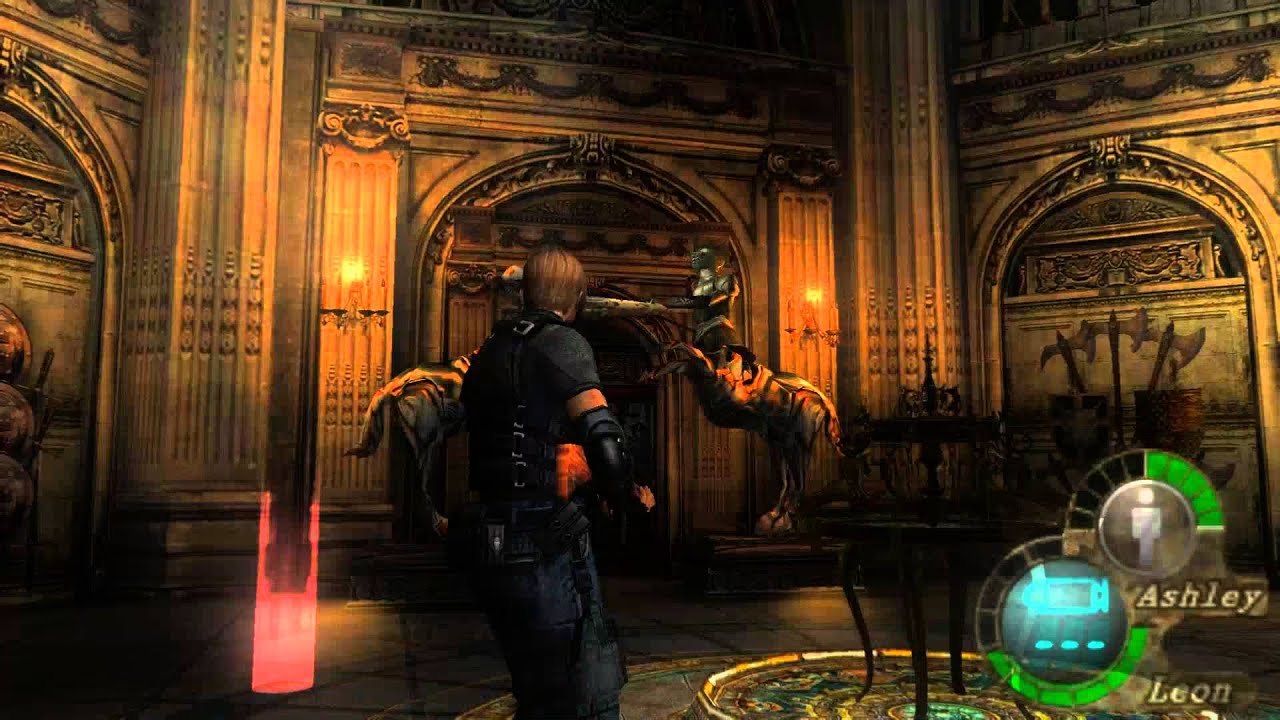
Resident Evil: PC Configuration Guide
Welcome to our comprehensive guide to PC configuration for Resident Evil games. This guide covers the system requirements, recommended settings, and optimization tips for the Resident Evil series on PC.
System Requirements
Resident Evil 2 Remake
-
Minimum Requirements
- OS: Windows 7/8.1/10 64-bit
- Processor: Intel Core i5-4460 or AMD FX-6300
- Memory: 8 GB RAM
- Graphics: NVIDIA GeForce GTX 760 or AMD Radeon R7 260x
- DirectX: Version 11
- Storage: 26 GB available space
- Sound Card: DirectSound Compatible
-
Recommended Requirements
- OS: Windows 7/8.1/10 64-bit
- Processor: Intel Core i7-3770 or AMD FX-9590
- Memory: 16 GB RAM
- Graphics: NVIDIA GeForce GTX 1060 or AMD Radeon RX 480
- DirectX: Version 11
- Storage: 26 GB available space
- Sound Card: DirectSound Compatible
Resident Evil 3 Remake
-
Minimum Requirements
- OS: Windows 7/8.1/10 64-bit
- Processor: Intel Core i5-4460 or AMD FX-6300
- Memory: 8 GB RAM
- Graphics: NVIDIA GeForce GTX 760 or AMD Radeon R7 260x
- DirectX: Version 11
- Storage: 45 GB available space
- Sound Card: DirectSound Compatible
-
Recommended Requirements
- OS: Windows 7/8.1/10 64-bit
- Processor: Intel Core i7-3770 or AMD FX-9590
- Memory: 16 GB RAM
- Graphics: NVIDIA GeForce GTX 1060 or AMD Radeon RX 480
- DirectX: Version 11
- Storage: 45 GB available space
- Sound Card: DirectSound Compatible
Resident Evil 4 Remake
-
Minimum Requirements
- OS: Windows 10 64-bit
- Processor: Intel Core i5-7500 or AMD Ryzen 3 1200
- Memory: 12 GB RAM
- Graphics: NVIDIA GeForce GTX 1050 Ti or AMD Radeon RX 560
- DirectX: Version 12
- Storage: 67 GB available space
- Sound Card: DirectSound Compatible
-
Recommended Requirements
- OS: Windows 10 64-bit
- Processor: Intel Core i7-8700 or AMD Ryzen 5 3600
- Memory: 16 GB RAM
- Graphics: NVIDIA GeForce GTX 1070 or AMD Radeon RX 5700
- DirectX: Version 12
- Storage: 67 GB available space
- Sound Card: DirectSound Compatible
Resident Evil 7
-
Minimum Requirements
- OS: Windows 7/8.1/10 64-bit
- Processor: Intel Core i5-4460 or AMD FX-6300
- Memory: 8 GB RAM
- Graphics: NVIDIA GeForce GTX 760 or AMD Radeon R7 260x
- DirectX: Version 11
- Storage: 24 GB available space
- Sound Card: DirectSound Compatible
-
Recommended Requirements
- OS: Windows 7/8.1/10 64-bit
- Processor: Intel Core i7-3770 or AMD FX-9590
- Memory: 16 GB RAM
- Graphics: NVIDIA GeForce GTX 1060 or AMD Radeon RX 480
- DirectX: Version 11
- Storage: 24 GB available space
- Sound Card: DirectSound Compatible
Resident Evil Village
-
Minimum Requirements
- OS: Windows 10 64-bit
- Processor: Intel Core i5-7500 or AMD Ryzen 3 1200
- Memory: 16 GB RAM
- Graphics: NVIDIA GeForce GTX 1050 Ti or AMD Radeon RX 560
- DirectX: Version 12
- Storage: 50 GB available space
- Sound Card: DirectSound Compatible
-
Recommended Requirements
- OS: Windows 10 64-bit
- Processor: Intel Core i7-8700 or AMD Ryzen 5 3600
- Memory: 16 GB RAM
- Graphics: NVIDIA GeForce GTX 1070 or AMD Radeon RX 5700
- DirectX: Version 12
- Storage: 50 GB available space
- Sound Card: DirectSound Compatible
Optimizing Your PC
Hardware Optimization
-
CPU Optimization
- Keep your CPU cool with proper cooling
- Overclock your CPU if possible (but be careful)
- Close unnecessary background applications
- Update your CPU drivers
-
GPU Optimization
- Update your graphics card drivers
- Overclock your GPU if possible (but be careful)
- Ensure your GPU has proper cooling
- Set your power management settings to high performance
-
Memory Optimization
- Close unnecessary background applications
- Use a RAM cleaner if needed
- Ensure your memory is properly seated
- Consider upgrading to faster RAM
-
Storage Optimization
- Install the game on an SSD for faster loading times
- Keep your storage drive clean and defragmented
- Ensure you have enough free space
- Consider upgrading to a faster storage drive
Software Optimization
-
Windows Optimization
- Update Windows to the latest version
- Disable unnecessary startup applications
- Adjust Windows power settings to high performance
- Disable Windows Game Mode if it’s causing issues
-
Driver Updates
- Update your graphics card drivers
- Update your motherboard drivers
- Update your sound card drivers
- Update your DirectX version
-
Game Settings Optimization
- Adjust in-game graphics settings based on your hardware
- Use the game’s built-in benchmark tool to test performance
- Consider using third-party optimization tools
- Disable unnecessary in-game features
In-Game Settings
Graphics Settings
-
Resolution
- Set to your monitor’s native resolution for best quality
- Lower if you need better performance
- Consider using a resolution scaling option if available
-
Texture Quality
- Set to high or ultra for best quality
- Lower if you have limited VRAM
- Consider using texture streaming if available
-
Shadow Quality
- Set to high for best quality
- Lower if you need better performance
- Consider using shadow resolution scaling if available
-
Anti-Aliasing
- Set to TAA or MSAA for best quality
- Lower or disable if you need better performance
- Consider using DLSS or FSR if available
-
Effects Quality
- Set to high for best quality
- Lower if you need better performance
- Consider disabling post-processing effects if needed
-
Foliage Quality
- Set to high for best quality
- Lower if you need better performance
- Consider reducing draw distance if available
-
Lighting Quality
- Set to high for best quality
- Lower if you need better performance
- Consider reducing global illumination quality if available
Performance Settings
-
Frame Rate Cap
- Set to your monitor’s refresh rate
- Lower if you need better performance
- Consider using a frame rate limiter if available
-
V-Sync
- Enable to eliminate screen tearing
- Disable if you need better performance
- Consider using G-Sync or FreeSync if available
-
Motion Blur
- Disable for better performance and clarity
- Enable if you prefer the cinematic effect
- Consider reducing motion blur quality if available
-
Depth of Field
- Disable for better performance and clarity
- Enable if you prefer the cinematic effect
- Consider reducing depth of field quality if available
-
Ambient Occlusion
- Set to SSAO or HBAO for best quality
- Lower or disable if you need better performance
- Consider using ambient occlusion scaling if available
Best Settings for Different Hardware
Low-End PCs
-
Graphics Settings
- Resolution: 1080p or lower
- Texture Quality: Medium
- Shadow Quality: Low
- Anti-Aliasing: Off
- Effects Quality: Low
- Foliage Quality: Low
- Lighting Quality: Low
-
Performance Settings
- Frame Rate Cap: 60 FPS
- V-Sync: Off
- Motion Blur: Off
- Depth of Field: Off
- Ambient Occlusion: Off
Mid-Range PCs
-
Graphics Settings
- Resolution: 1080p
- Texture Quality: High
- Shadow Quality: Medium
- Anti-Aliasing: TAA
- Effects Quality: Medium
- Foliage Quality: Medium
- Lighting Quality: Medium
-
Performance Settings
- Frame Rate Cap: 60 FPS
- V-Sync: On
- Motion Blur: Low
- Depth of Field: Low
- Ambient Occlusion: SSAO
High-End PCs
-
Graphics Settings
- Resolution: 1440p or 4K
- Texture Quality: Ultra
- Shadow Quality: High
- Anti-Aliasing: MSAA or DLSS
- Effects Quality: High
- Foliage Quality: High
- Lighting Quality: High
-
Performance Settings
- Frame Rate Cap: 144 FPS or higher
- V-Sync: On (if using G-Sync/FreeSync)
- Motion Blur: Medium
- Depth of Field: Medium
- Ambient Occlusion: HBAO
Troubleshooting
Common Issues
-
Low Frame Rates
- Cause: Insufficient hardware or unoptimized settings
- Solution: Lower graphics settings, close background applications, update drivers
-
Screen Tearing
- Cause: V-Sync is disabled or not working properly
- Solution: Enable V-Sync, use G-Sync or FreeSync if available
-
Stuttering
- Cause: Insufficient memory, slow storage, or background applications
- Solution: Close background applications, upgrade RAM, install on SSD
-
Crashes
- Cause: Outdated drivers, corrupted game files, or hardware issues
- Solution: Update drivers, verify game files, check hardware temperatures
-
Audio Issues
- Cause: Outdated audio drivers, incorrect audio settings
- Solution: Update audio drivers, check audio settings
Advanced Troubleshooting
-
Driver Issues
- Solution: Clean install graphics card drivers, use DDU (Display Driver Uninstaller)
-
Game File Issues
- Solution: Verify game files through Steam or other platforms, reinstall the game
-
Hardware Issues
- Solution: Check hardware temperatures, run hardware diagnostics, ensure proper cooling
-
Software Conflicts
- Solution: Disable antivirus software temporarily, close background applications
-
Operating System Issues
- Solution: Update Windows, repair Windows installation, check for malware
Overclocking
CPU Overclocking
-
Benefits
- Improved game performance
- Better multitasking
- Increased system responsiveness
-
Risks
- Increased power consumption
- Increased heat production
- Potential hardware damage
-
Tips
- Start with small increments
- Monitor temperatures
- Test stability
- Use proper cooling
GPU Overclocking
-
Benefits
- Improved game performance
- Better graphics quality
- Increased frame rates
-
Risks
- Increased power consumption
- Increased heat production
- Potential hardware damage
-
Tips
- Start with small increments
- Monitor temperatures
- Test stability
- Use proper cooling
Future-Proofing Your PC
Hardware Upgrades
-
CPU Upgrade
- Consider a newer generation CPU
- Look for higher core counts and clock speeds
- Ensure compatibility with your motherboard
-
GPU Upgrade
- Consider a newer generation GPU
- Look for more VRAM and better performance
- Ensure compatibility with your power supply
-
Memory Upgrade
- Consider upgrading to 16 GB or 32 GB RAM
- Look for faster RAM speeds
- Ensure compatibility with your motherboard
-
Storage Upgrade
- Consider upgrading to an SSD or NVMe drive
- Look for larger capacities and faster speeds
- Ensure compatibility with your motherboard
Software Updates
-
Driver Updates
- Keep your graphics card drivers up to date
- Update your motherboard drivers
- Update your sound card drivers
-
Operating System Updates
- Keep Windows up to date
- Install feature updates when available
- Use Windows 10 or Windows 11 for best performance
-
Game Updates
- Keep your games up to date
- Install performance patches
- Enable automatic updates
Conclusion
Optimizing your PC for Resident Evil games can significantly improve your gaming experience. By following the tips and recommendations in this guide, you can ensure that your games run smoothly and look their best.
Remember to always monitor your hardware temperatures and test your settings to find the perfect balance between performance and quality. With the right configuration, you can enjoy the Resident Evil series on PC with the best possible experience.